 Google Drive
 OneDrive
Ниже мы покажем, как сделать PDF заполняемым
-
Выбери PDF-документ
Нажми 'Upload', чтобы выбрать файл. Нет документа? Начни с пустого шаблона.
-
Добавь заполняемые поля в PDF-форму
Просмотри документ и добавь поля там, где нужно.
Можно выбрать такие типы полей:
- Текстовое поле: одна строка текста
- Textarea: несколько строк текста
- Radio: выбор одного из группы
- Чекбокс: выбор одного или нескольких вариантов
- Dropdown: выбор из выпадающего списка
- Поле для подписи: поле для подписи другими лицами
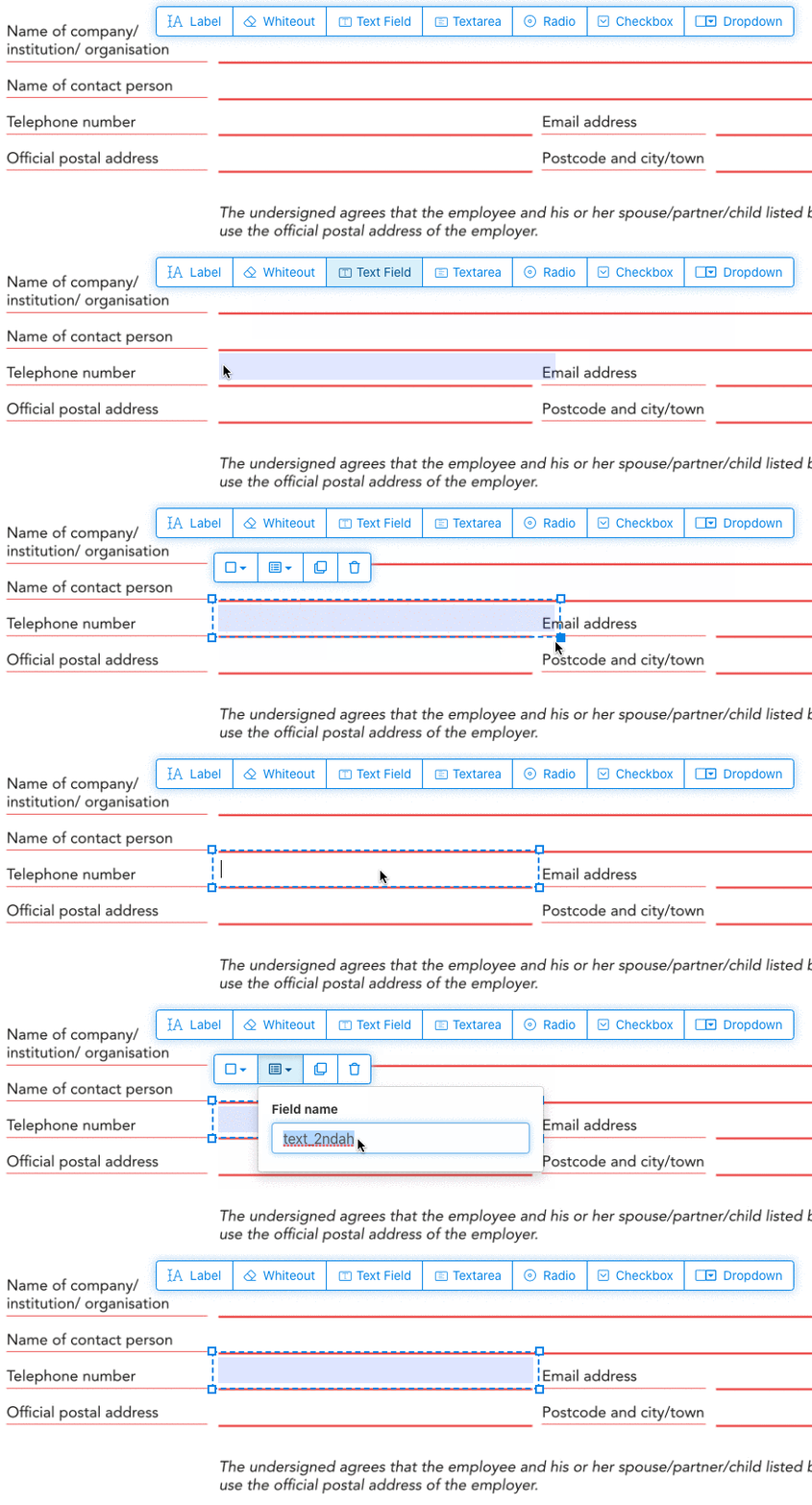
Как создать текстовое поле в PDF
Нажми на текстовое поле в меню. Затем кликни на страницу, чтобы разместить новое поле.
![]()
Создавай чекбоксы, радиокнопки или списки
Остальные поля форм добавляются так же.
Radio buttons are grouped together in unison by using the same form field name for all buttons. This ensures only one is selected at the same time. When the user selects one, the other radio buttons in the group are deselected.
Измени цвет рамки. Configure text color in PDF form fields
Сделай рамку прозрачной или выбери подходящий цвет. The color of the text of the PDF fields can be configured.
The text alignment can be configured as 'Left', 'Center' or 'Right'. The font size can be set to a specific value or left as 'Auto' to that it automatically adjusts based on the amount of text typed in.
Настраивай названия и свойства полей
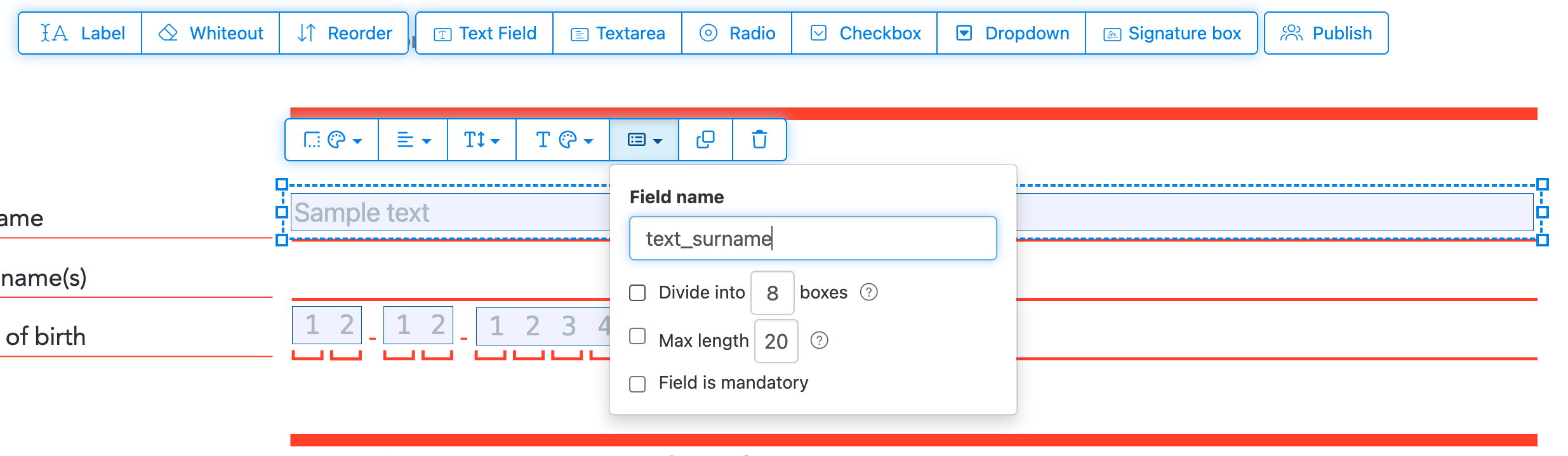
Задавай имя каждому полю и настраивай свойства: мультивыбор, значения экспорта и др..
Mark any field as required, so it must be completed before the form can be submitted. For text fields, you can also set a maximum character length to limit input.
Text fields can be displayed as a comb field, dividing the input area into equally spaced boxes, one per character. Commonly used for date fields, postal codes, ID numbers, and similar structured inputs.
![]()
Change PDF tab order
Need to control the order in which fields are tabbed through? Click 'Reorder' to reorder form fields by dragging and dropping, or auto-sort them by rows or columns.
Align PDF fields, multi-select and duplicate across pages
Select multiple form fields at once and duplicate them to a different page, handy when building multi-page forms with repeating sections.
Use the alignment tools to line up multiple form fields with each other. Align by left, right, top, or bottom edge for a clean, professional layout.
Опубликовать для заполнения и подписи
Once your form is ready, use 'Publish' button to generate a shareable link. Anyone with the link can open the form, fill it out, and send it back to you by email. The link does not expire and can be shared on a website or in an email.
-
Сохрани документ
Нажми «Apply changes». Когда обработка завершится, сохрани обновленный документ.
Теперь у тебя есть PDF-форма, которую легко заполнить на компьютере без печати.