 Google Drive
 OneDrive
Di seguito mostriamo come convertire un PDF in un modulo compilabile
-
Seleziona un documento PDF esistente
Clicca su 'Carica' per selezionare un file. Nessun documento esistente? Inizia con un modello vuoto.
-
Aggiungi campi modulo compilabili al tuo modulo PDF
Rivedi il contenuto esistente del tuo documento e aggiungi campi modulo compilabili dove necessario.
Puoi scegliere tra i seguenti tipi di campo:
- Campo di testo: una singola linea di testo
- Area di testo: multiple linee di testo
- solo uno da un gruppo: seleziona solo uno da un gruppo
- Casella di controllo: spunta una o più scelte
- Elenco a discesa: scegli una o più opzioni da un elenco a discesa
- Casella di firma: casella di firma per altri
Come creare un campo di testo PDF compilabile
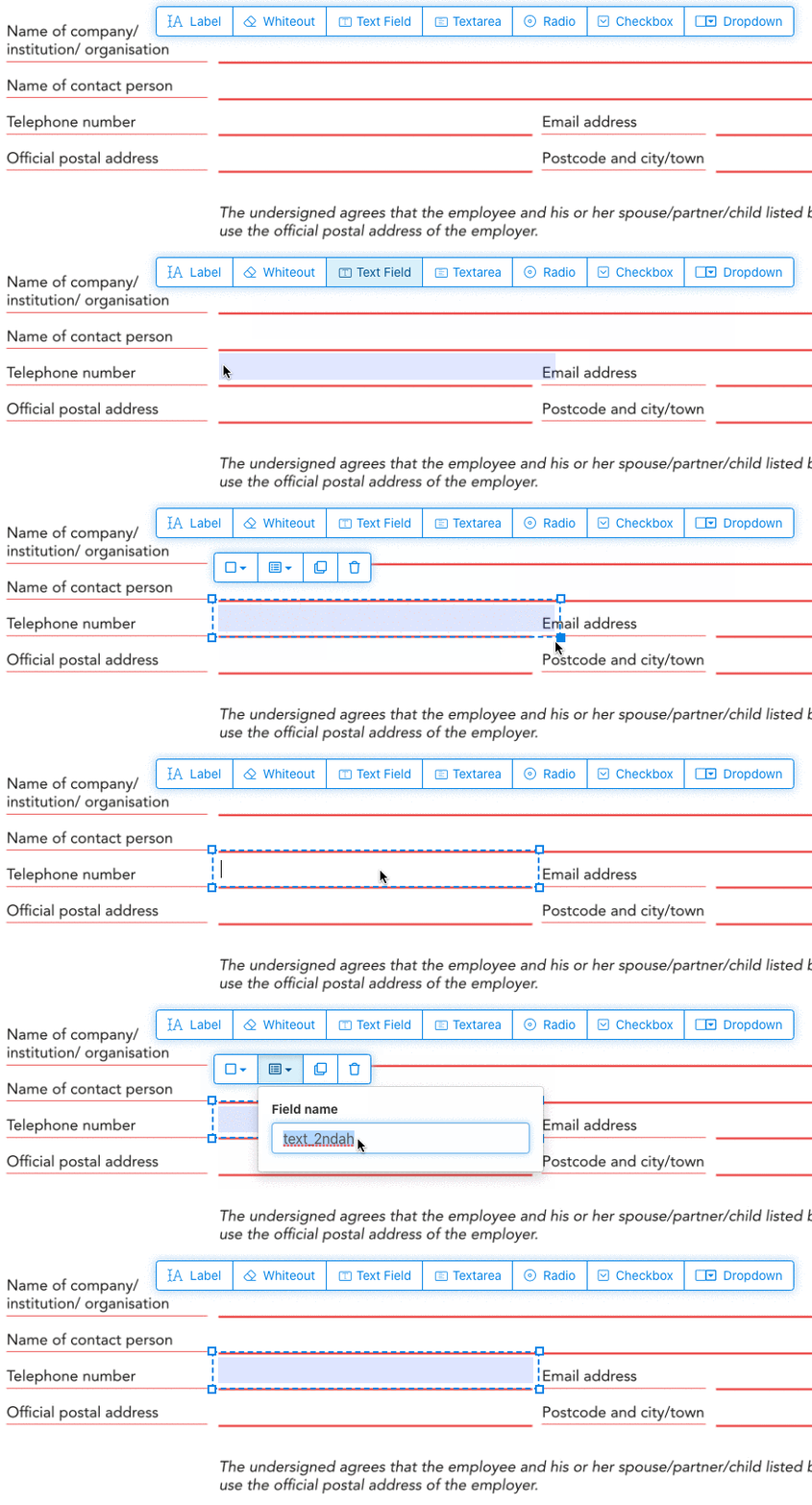
Clicca sull'elemento campo di testo dal menu. Poi clicca sulla pagina per posizionare un nuovo campo di testo.
![]()
Crea caselle di controllo, pulsanti radio o elenchi a discesa
Tutti gli altri campi del modulo possono essere aggiunti allo stesso modo.
Radio buttons are grouped together in unison by using the same form field name for all buttons. This ensures only one is selected at the same time. When the user selects one, the other radio buttons in the group are deselected.
Cambia il colore del bordo. Configure text color in PDF form fields
Avere campi del modulo con un bordo trasparente o scegliere il colore che preferisci. The color of the text of the PDF fields can be configured.
The text alignment can be configured as 'Left', 'Center' or 'Right'. The font size can be set to a specific value or left as 'Auto' to that it automatically adjusts based on the amount of text typed in.
Controlla i nomi dei campi del modulo e altre proprietà
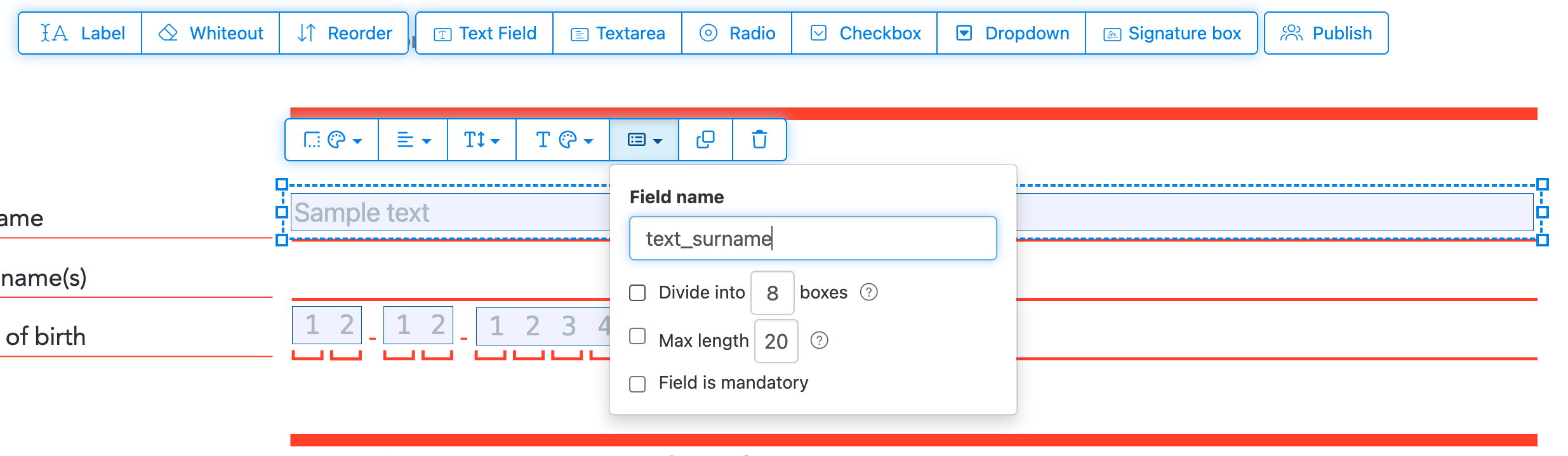
Definisci il nome per ogni campo del modulo e configura proprietà specifiche del campo, come multiselezione, valori di esportazione e altro.
Mark any field as required, so it must be completed before the form can be submitted. For text fields, you can also set a maximum character length to limit input.
Text fields can be displayed as a comb field, dividing the input area into equally spaced boxes, one per character. Commonly used for date fields, postal codes, ID numbers, and similar structured inputs.
![]()
Change PDF tab order
Need to control the order in which fields are tabbed through? Click 'Reorder' to reorder form fields by dragging and dropping, or auto-sort them by rows or columns.
Align PDF fields, multi-select and duplicate across pages
Select multiple form fields at once and duplicate them to a different page, handy when building multi-page forms with repeating sections.
Use the alignment tools to line up multiple form fields with each other. Align by left, right, top, or bottom edge for a clean, professional layout.
Pubblica per far compilare e firmare
Once your form is ready, use 'Publish' button to generate a shareable link. Anyone with the link can open the form, fill it out, and send it back to you by email. The link does not expire and can be shared on a website or in an email.
-
Salva il tuo documento
Clicca su 'Applica modifiche'. Quando l'elaborazione è completata, salva il tuo documento aggiornato.
Dovresti avere un documento PDF compilabile che può essere facilmente compilato elettronicamente, senza stampare.