 Google Drive
 OneDrive
Dưới đây là cách chuyển PDF thành biểu mẫu có thể điền
-
Chọn một tài liệu PDF có sẵn
Nhấp vào 'Tải lên' để chọn tệp. Chưa có tài liệu? Bắt đầu với mẫu trống.
-
Thêm trường biểu mẫu có thể điền vào PDF
Xem lại nội dung tài liệu và thêm các trường biểu mẫu khi cần thiết.
Bạn có thể chọn các loại trường sau:
- Text Field: một dòng văn bản
- Textarea: nhiều dòng văn bản
- Radio: chỉ chọn một trong nhóm
- Checkbox: đánh dấu một hoặc nhiều lựa chọn
- Dropdown: chọn một hoặc nhiều tùy chọn từ danh sách
- Ô chữ ký: ô chữ ký để người khác ký
Cách tạo trường văn bản PDF có thể điền
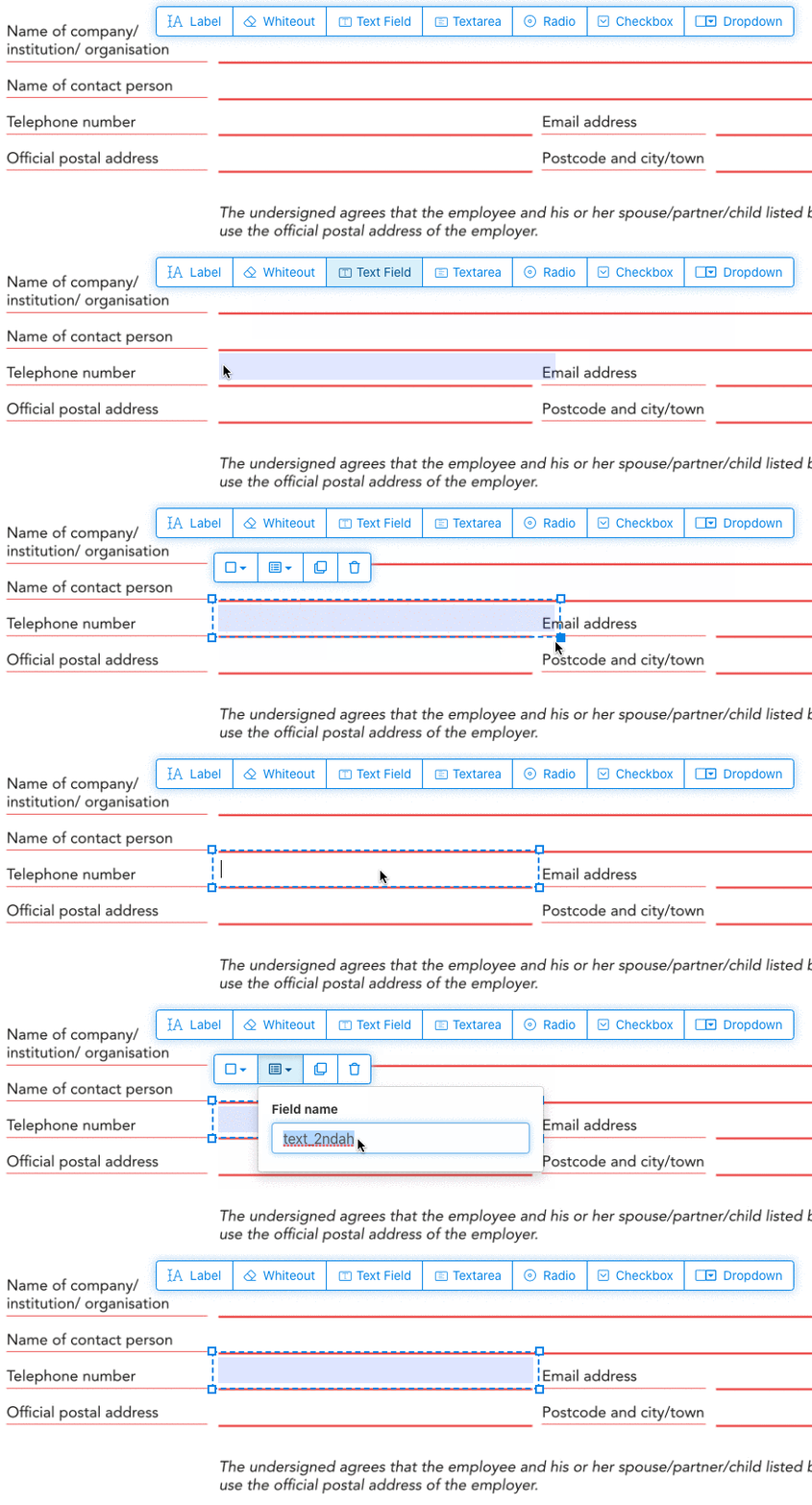
Nhấp vào Text Field từ menu. Sau đó nhấp vào trang để đặt trường văn bản mới.
![]()
Tạo checkbox, radio buttons hoặc dropdown
Các trường khác cũng được thêm theo cách tương tự.
Radio buttons are grouped together in unison by using the same form field name for all buttons. This ensures only one is selected at the same time. When the user selects one, the other radio buttons in the group are deselected.
Thay đổi màu viền. Configure text color in PDF form fields
Để viền trong suốt hoặc chọn màu bạn thích nhất. The color of the text of the PDF fields can be configured.
The text alignment can be configured as 'Left', 'Center' or 'Right'. The font size can be set to a specific value or left as 'Auto' to that it automatically adjusts based on the amount of text typed in.
Kiểm soát tên trường và các thuộc tính khác
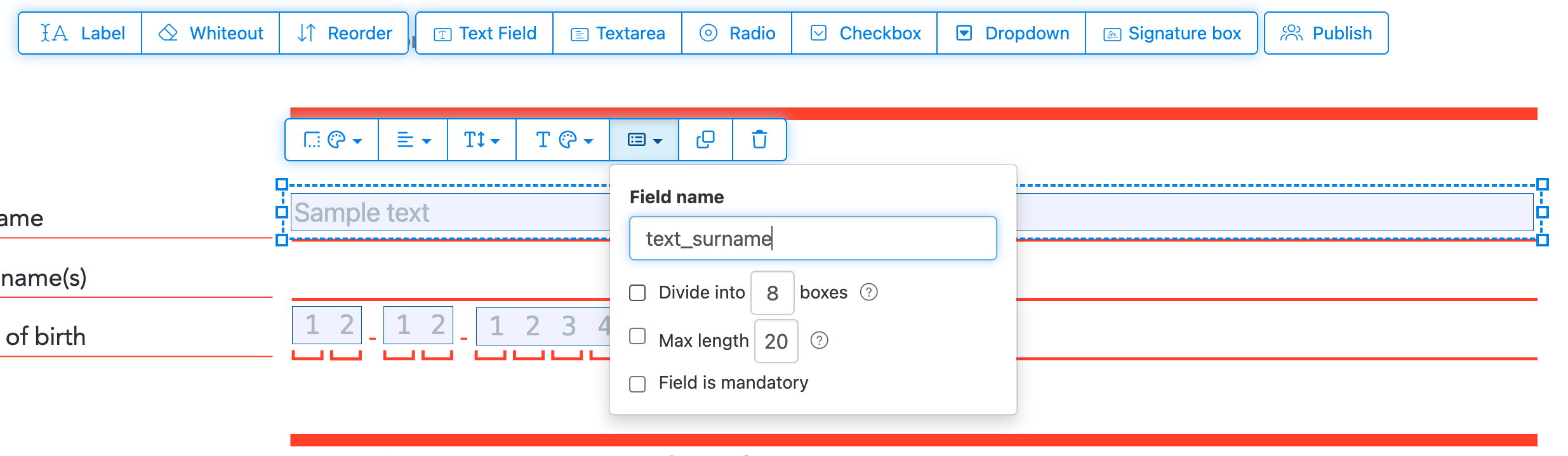
Đặt tên trường và cấu hình thuộc tính như multiselect, giá trị xuất và hơn thế nữa.
Mark any field as required, so it must be completed before the form can be submitted. For text fields, you can also set a maximum character length to limit input.
Text fields can be displayed as a comb field, dividing the input area into equally spaced boxes, one per character. Commonly used for date fields, postal codes, ID numbers, and similar structured inputs.
![]()
Change PDF tab order
Need to control the order in which fields are tabbed through? Click 'Reorder' to reorder form fields by dragging and dropping, or auto-sort them by rows or columns.
Align PDF fields, multi-select and duplicate across pages
Select multiple form fields at once and duplicate them to a different page, handy when building multi-page forms with repeating sections.
Use the alignment tools to line up multiple form fields with each other. Align by left, right, top, or bottom edge for a clean, professional layout.
Xuất bản để người khác điền & ký
Once your form is ready, use 'Publish' button to generate a shareable link. Anyone with the link can open the form, fill it out, and send it back to you by email. The link does not expire and can be shared on a website or in an email.
-
Lưu tài liệu của bạn
Nhấp vào 'Apply changes'. Khi xử lý xong, hãy lưu tài liệu đã cập nhật.
Bạn sẽ có file PDF có thể điền điện tử dễ dàng mà không cần in.