 Google Drive
 OneDrive
以下にPDFを入力可能フォームに変換する方法を紹介します
-
既存のPDFドキュメントを選択
'Upload'をクリックしてファイルを選択. ドキュメントがありませんか? 白紙テンプレートから開始.
-
PDFフォームに入力可能なフォームフィールドを追加
ドキュメントの既存コンテンツを確認し、必要な場所に入力可能なフォームフィールドを追加します.
以下のフィールドタイプから選択できます:
- テキストフィールド: 1行のテキスト
- テキストエリア: 複数行のテキスト
- ラジオ: グループから1つだけ選択
- チェックボックス: 1つ以上の選択肢をチェック
- ドロップダウン: ドロップダウンリストから1つ以上のオプションを選択
- 署名ボックス: 他人が署名するための署名ボックス
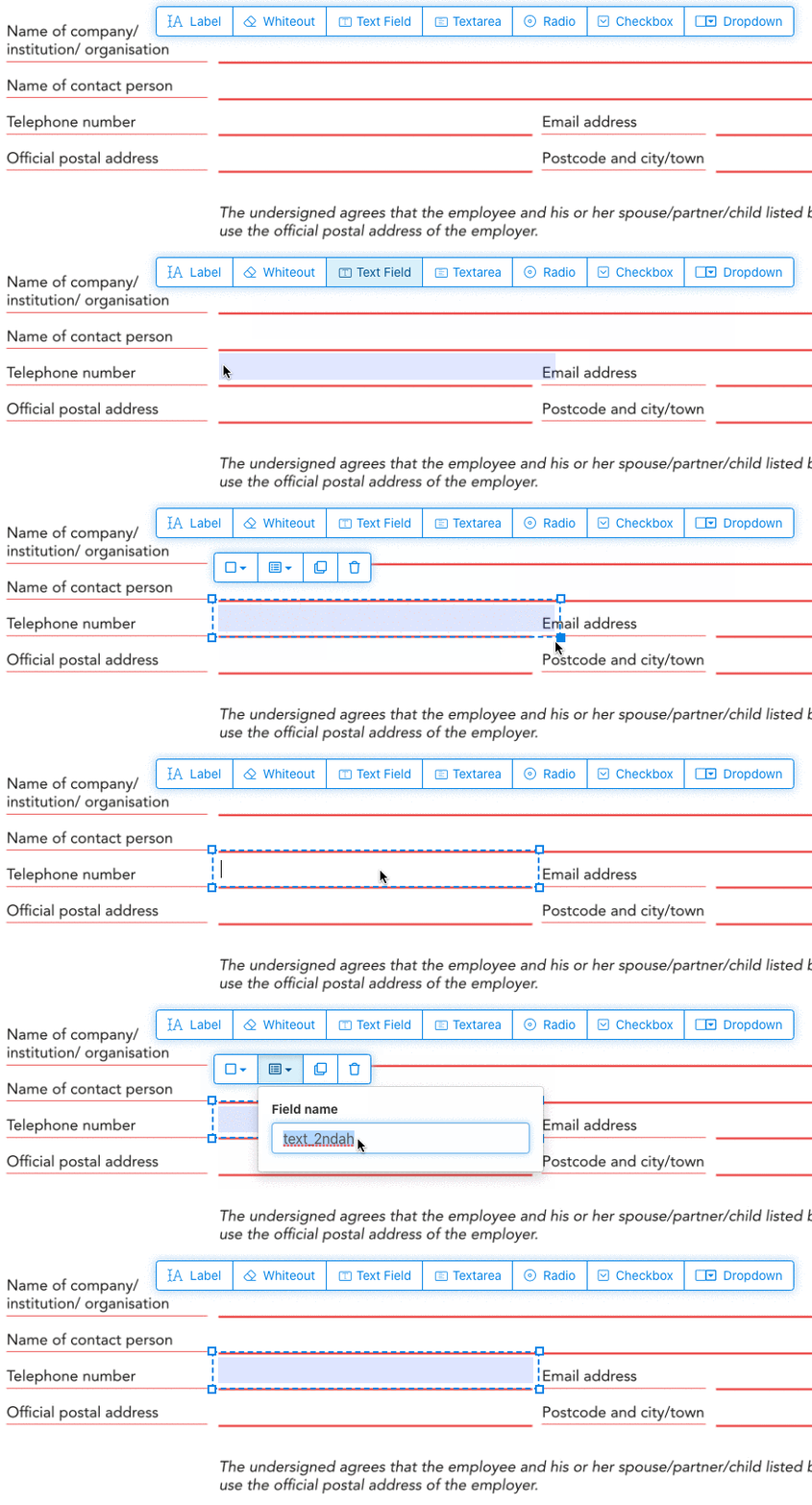
入力可能なPDFテキストフィールドを作成する方法
メニューからテキストフィールドの項目をクリック. 次にページをクリックして新しいテキストフィールドを配置.
![]()
チェックボックス、ラジオボタン、またはドロップダウンを作成
他のすべてのフォームフィールドも同じ方法で追加できます.
Radio buttons are grouped together in unison by using the same form field name for all buttons. This ensures only one is selected at the same time. When the user selects one, the other radio buttons in the group are deselected.
枠線の色を変更. Configure text color in PDF form fields
フォームフィールドの枠線を透明にするか、最適な色を選択してください. The color of the text of the PDF fields can be configured.
The text alignment can be configured as 'Left', 'Center' or 'Right'. The font size can be set to a specific value or left as 'Auto' to that it automatically adjusts based on the amount of text typed in.
フォームフィールド名とその他のプロパティを管理
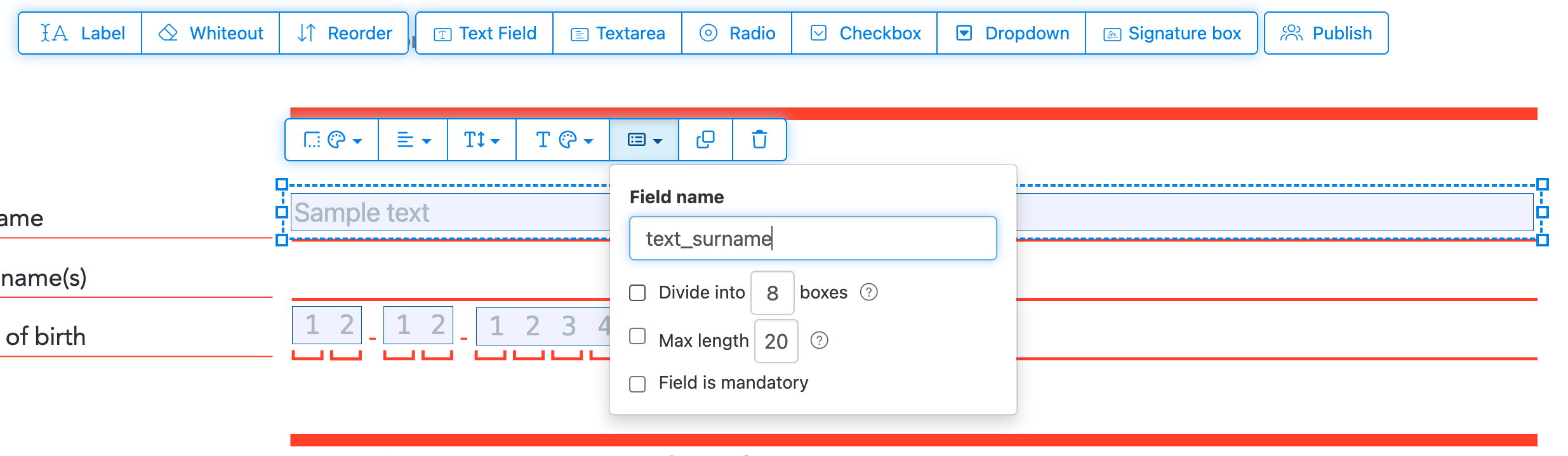
各フォームフィールドの名前を定義し、複数選択やエクスポート値などの特定のフィールドプロパティを設定します.
Mark any field as required, so it must be completed before the form can be submitted. For text fields, you can also set a maximum character length to limit input.
Text fields can be displayed as a comb field, dividing the input area into equally spaced boxes, one per character. Commonly used for date fields, postal codes, ID numbers, and similar structured inputs.
![]()
Change PDF tab order
Need to control the order in which fields are tabbed through? Click 'Reorder' to reorder form fields by dragging and dropping, or auto-sort them by rows or columns.
Align PDF fields, multi-select and duplicate across pages
Select multiple form fields at once and duplicate them to a different page, handy when building multi-page forms with repeating sections.
Use the alignment tools to line up multiple form fields with each other. Align by left, right, top, or bottom edge for a clean, professional layout.
入力・署名用に公開
Once your form is ready, use 'Publish' button to generate a shareable link. Anyone with the link can open the form, fill it out, and send it back to you by email. The link does not expire and can be shared on a website or in an email.
-
ドキュメントを保存
'Apply changes' をクリック. 処理が完了したら、更新されたドキュメントを保存します.
印刷せずに電子的に入力できる、入力可能なPDFドキュメントの完成です.