Sejda PDF Desktop
Productive PDF software that you'll love to use
Sejda PDF Desktop दैनिक सीमाओं के साथ इस्तेमाल के लिए free है.
PRO features और unlimited इस्तेमाल के लिए Upgrade करें.
| Free | Pro |
| 3 tasks per day | Unlimited |
| Docs up to 50MB and 200 pages | Unlimited |
| Compress files up to 100MB | Unlimited |
| OCR files up to 10 pages | Unlimited |
| Images up to 5MB | Unlimited |
| Combine up to 30 files and 50 pages | Unlimited |
| Convert files one by one | Multiple files in one go |
हम आपके PDF tasks में मदद करते हैं
फ़ाइलों को एक PDF में Merge करें
pages को visually combine और reorder करें, कई PDF फ़ाइलों को merge करें. अलग-अलग फ़ाइलों से odd और even page को alternate और mix करें.

PDF फ़ाइलों को Split करें
documents को pages के अनुसार Split करें. अलग documents Extract करें. size, bookmarks या text occurrences के अनुसार Split करें. दो page layout scans को विभाजित करें
PDF फ़ाइलों को Office और image फ़ॉर्मेट में Convert करें
PDF फ़ाइलों को Word, Excel और image में Convert करें. images को PDF फ़ाइल में Convert करें
PDF Compress करें
PDF फ़ाइलों का size कम करें. images और अन्य resources को Optimize करें

PDF फ़ाइलों को Edit करें
अपने PDF में text जोड़ें, edit करें या move करें. font type, size और style बदलें. pages को insert, reorder, move या delete करें.
signature जोड़ें, text और shapes को highlight करें
PDF passwords और restrictions लागू करें
PDF में copy और edit protection जोड़ें. अपने PDF को अनधिकृत एक्सेस से बचाने के लिए password जोड़ें

Watermark PDF
PDF डॉक्यूमेंट्स में इमेज या टेक्स्ट वॉटरमार्क जोड़ें
Grayscale PDF
PDF टेक्स्ट और इमेजेस को Grayscale बनाएं
PDF Crop करें
PDF margins को trim करें, visible page area को adjust करें, PDF page size बदलें
Easy to adopt and deploy in the enterprise
- Pre-activated deployments with a volume license key
- Citrix™ and Terminal Services™ compatible
- Save costs — volume discounts start from 2 licenses (up to 60% off)
अपने लिए सही version चुनें
अपने business के लिए सही version चुनें
Sejda PDF Desktop दैनिक सीमाओं के साथ इस्तेमाल के लिए free है. PRO features और unlimited इस्तेमाल के लिए Upgrade करें.
for 10 users
- Latest features
- 7 days access to Sejda Desktop
- 7 days access to Sejda Web
for 10 users
- Latest features
- A year access to Sejda Desktop
- A year access to Sejda Web

Common questions
How can I cancel my subscription?
To cancel a recurring subscription just click 'Stop auto-renewal' from your account page. You can also email hi@sejda.com.
The Week Pass plan is a one-time charge, not a recurring subscription. It does not automatically renew and downgrades to free after 7 days.
Will my subscription be automatically renewed?
The Week Pass plan is a one-time charge, not a recurring subscription. It does not automatically renew and downgrades to free after 7 days.
Desktop Annual is a recurring subscription and will continue until you cancel.
Subscriptions auto-renew at the end of each term and you will be charged for the subsequent term.
What is the difference between Sejda Desktop and Sejda Web?
Sejda Web is the online, browser-based service, where files are uploaded and processed on our servers.
Sejda Desktop is an application that you can install on your computer and files are processed locally, on your computer.
Does Sejda Desktop process files locally?
Yes, with Sejda Desktop files are processed on your computer, not uploaded to our servers.
Can I use Sejda Desktop on both my laptop and my desktop?
Yes, you can use one license of Sejda Desktop on both your laptop and your desktop, given you are the only one using Sejda Desktop on these computers.
Do you offer a perpetual license?
No, we don't offer perpetual licenses anymore.
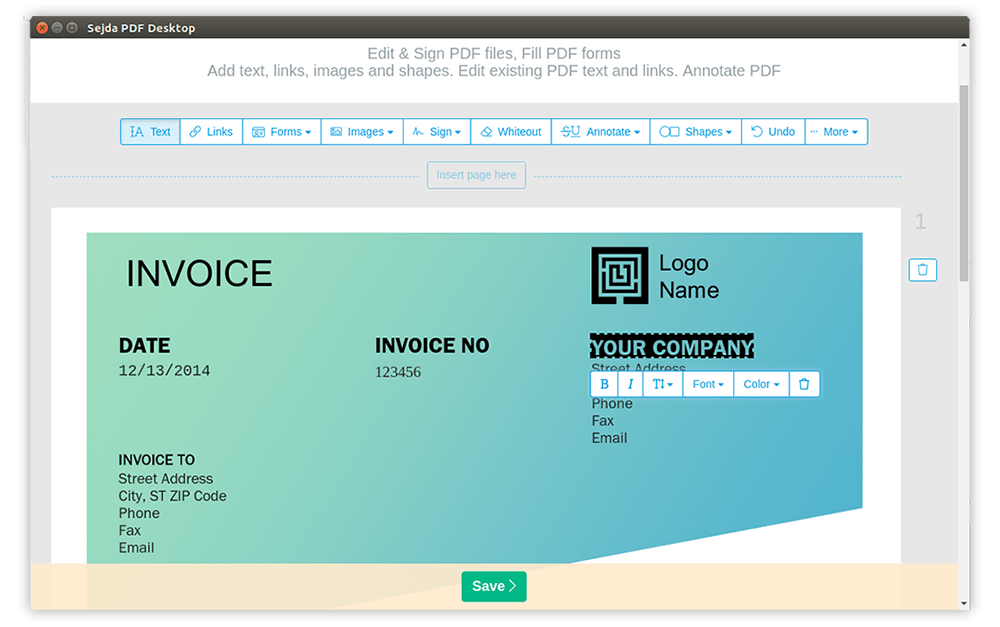
Ubuntu Linux Chromebook PDF Editor
How to Edit PDF on Ubuntu Linux or Chromebook
-
फ़ाइल खोलें Sejda Desktop का Linux वर्शन or use the ऑनलाइन PDF एडिटर
-
टॉप मेनू में Text टूल पर क्लिक करें
-
एडिटिंग शुरू करने के लिए मौजूदा टेक्स्ट पर क्लिक करके टेक्स्ट बदलें. PDF पेज पर टेक्स्ट जोड़ें.
-
पेज पर इमेज जोड़ें. इमेज को मूव, रिसाइज या रोटेट करने के लिए क्लिक करके ड्रैग करें
-
PDF फॉर्म भरें और सिग्नेचर जोड़ें. अपने सिग्नेचर को ड्रॉ करें, टाइप करें या उसकी इमेज Upload करें
-
PDF पेजों को Annotate करें, टेक्स्ट हाईलाइट करें और स्ट्राइकथ्रू के साथ बदलाव मार्क करें
-
वेब URL या डॉक्यूमेंट के पेजों के लिए नए लिंक जोड़ें. PDF में पहले से मौजूद हाइपरलिंक आसानी से एडिट करें
-
PDF में शब्दों के सभी उदाहरणों को आसानी से खोजें और बदलें. पेज के हिस्सों को व्हाइटआउट करें.शेप्स जोड़ें
-
Apply changes पर क्लिक करें और एडिट किया गया डॉक्यूमेंट सेव करें